Promotion Widget Not Showing in the Cart Drawer
Custom Placement allows you to display the widget at a specific location on your website.
Info
If your promotion widget is not appearing inside your cart drawer, your store is most likely using a custom Shopify theme.
Many custom themes use a unique cart drawer implementation, so our app cannot automatically determine the best location to display the widget. This can be resolved in just a few minutes.
Solution: Enable Custom Placement
After enabling Custom Placement, you'll be able to place the promotion widget exactly where you want it within your theme.
Open App
Open the Yaki – Buy X Get Y & Free Gift app.
Navigate to Appearance
Navigate to Appearance.
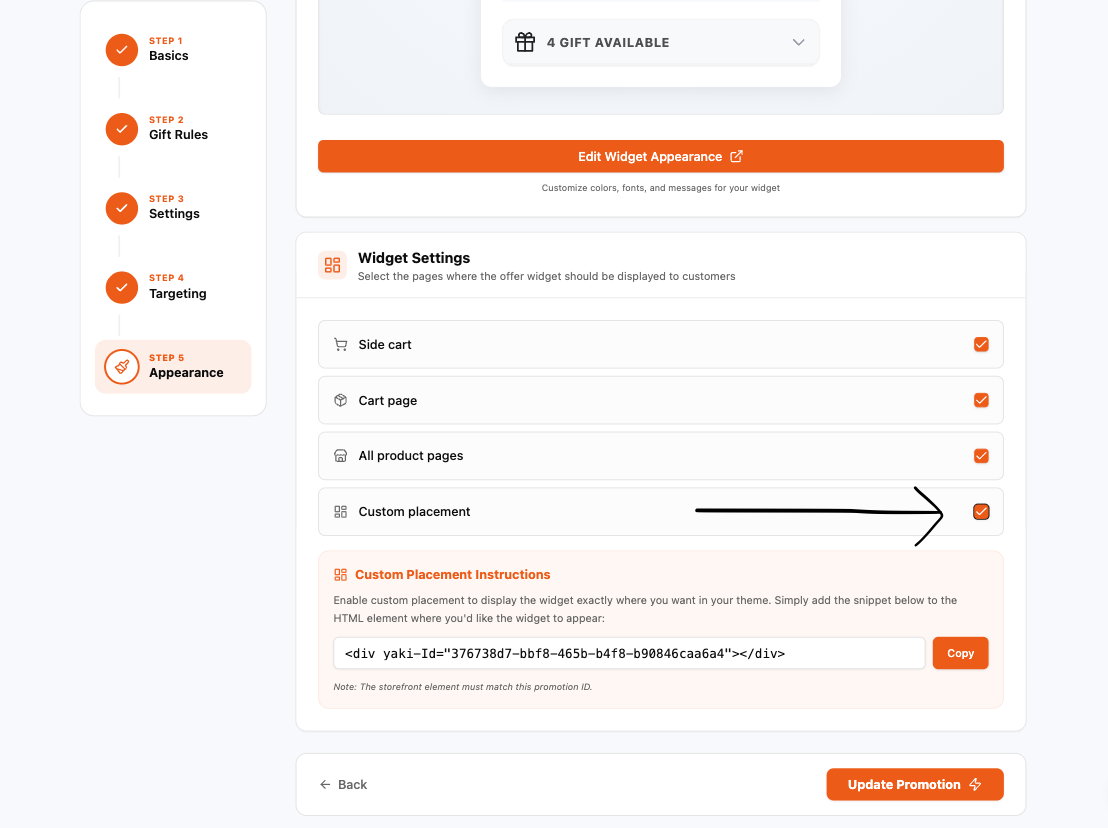
Enable Custom Placement
Enable Custom Placement.
Copy Code Snippet
Copy the Code Snippet.
Open Theme Code Editor
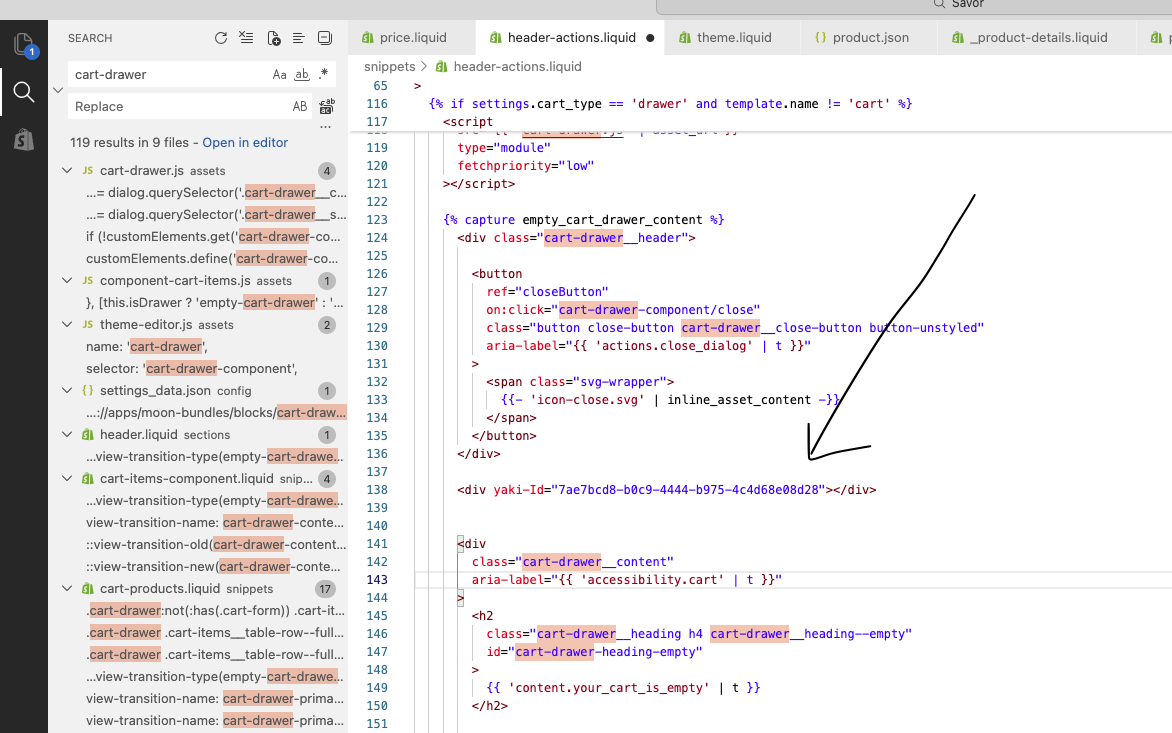
Open Theme Code Editor.
Find Placement Location
Find Cart Drawer Code or where you want to display the widget.
Paste Code & Save
Paste the code and save it.
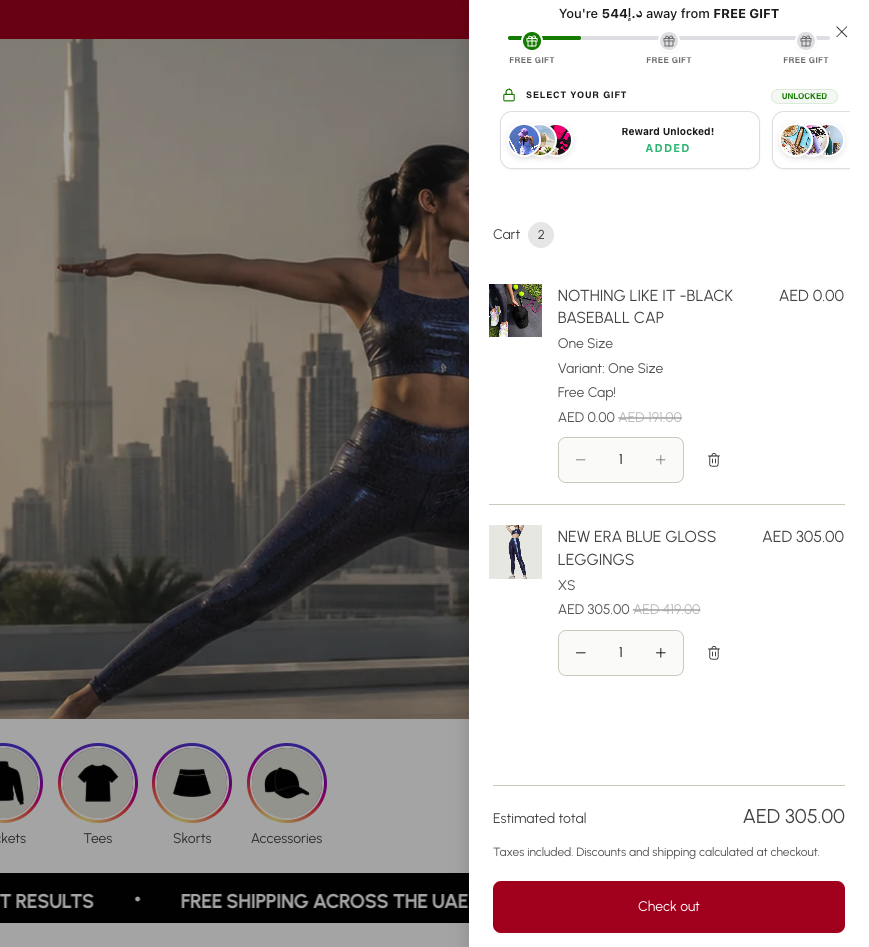
Verify Installation
Check Live Store / Website Preview and Confirm.
Need Help? We'll Do It for You
Free Setup Service
If you're not comfortable editing your theme, our team is happy to set everything up for you—free of charge.
Simply grant us Shopify Collaborator Access, and we'll:
- Find the correct cart drawer file in your theme.
- Insert the required widget snippet.
- Verify that the promotion widget displays correctly.
- Ensure everything works as expected before we're done.
Most installations are completed within a few minutes.
Why This Is Required
Note
Every Shopify theme is built differently. While Yaki automatically integrates with most popular themes, some custom or heavily modified themes require a one-time manual placement of the widget.
Once configured, the widget will continue working normally, and no further setup is required.
Still need help?
Contact our support team through the in-app chat or email us. We'll get your widget running as quickly as possible.